


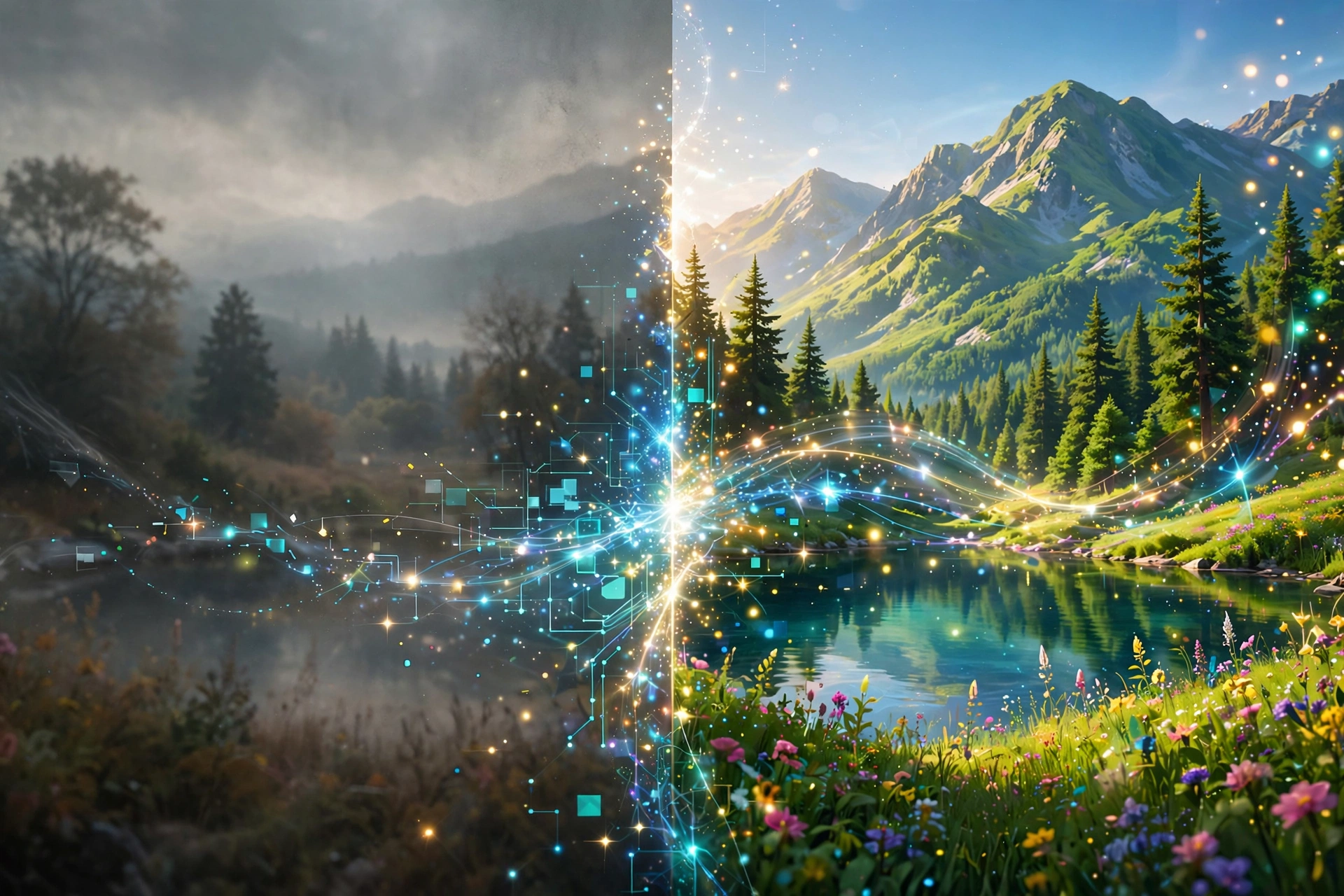
Blurry selfies, old family photos, pixelated screenshots — AI photo enhancers can turn them into sharp, high-definition images in seconds. In this 2026 guide, we explain how AI photo enhancement works, what the best apps can do, and how to enhance photos to HD quality on your Android phone.
What Is AI Photo Enhancement?
AI photo enhancement uses machine learning to analyze a low-quality image and intelligently rebuild missing detail — sharpening edges, reducing noise, fixing blur, and boosting colors. Unlike old-fashioned upscaling (which just stretches pixels), AI models trained on millions of photos can reconstruct realistic textures, especially faces, making old or damaged photos look genuinely restored.
What the Best AI Enhancer Apps Offer
- One-tap HD restore: Fix blurry, pixelated, or old photos instantly.
- Face detail recovery: Specialized models that rebuild facial features with striking clarity.
- Old photo restoration: Repair scratches, fading, and damage on vintage prints.
- Background enhancement: Improve lighting, color balance, and sharpness across the whole image.
- Before/after slider: Compare the original and enhanced versions side by side.
How to Enhance a Photo to HD (Step-by-Step)
- Install a reputable AI photo enhancer from the Play Store using the download button above.
- Open the app and select the photo you want to improve.
- Choose the enhance/restore option and let the AI process the image (usually a few seconds).
- Use the before/after slider to check the result.
- Apply final touches — brightness, contrast, or color — if the app offers them.
- Save the HD version to your gallery in the highest available resolution.
Tips for the Best Results
- Start with the best source: Enhancement works best on mildly blurry photos; extremely tiny images have less detail to recover.
- Faces need headroom: Photos where the face is clear (not heavily shadowed or cropped) enhance far better.
- Don’t over-enhance: Running enhancement multiple times can create artificial-looking artifacts.
- Check the background: AI sometimes alters backgrounds oddly — zoom in before saving.
Free vs. Premium: What to Expect
Most AI enhancer apps offer a few free enhancements per day with ads, while premium subscriptions unlock unlimited processing, video enhancement, and faster servers. For occasional use, the free tier is usually enough; content creators enhancing dozens of images may find premium worthwhile.
Privacy Note
Enhancement happens on company servers for most apps, which means your photos are uploaded. Avoid enhancing highly sensitive documents or private images, and read the app’s privacy policy if that concerns you.
Can AI really fix a very blurry photo?
AI can dramatically improve mildly blurry or low-resolution photos, but extremely tiny or damaged images have limits.
Is Remini free to use?
Remini offers limited free enhancements with ads; unlimited use and video enhancement require a premium subscription.
Are my photos safe when using enhancer apps?
Most apps process images on their servers, so avoid uploading highly sensitive documents and check the privacy policy.
Which photo format should I save in?
Save in the highest resolution available, preferably PNG or high-quality JPG.

5 Comments
Pingback: 10 Best Freelancing Skills to Learn in 2026
Pingback: YouCam Makeup App Review 2026: Virtual Try-On Guide
Pingback: ReLens Camera Review 2026: DSLR Blur on Android
Pingback: 8K Video Enhancer 2026: Honest Guide to AI Upscaling
Pingback: iPhone 18 Pro Max: Price in Pakistan, Specs & Verdict