

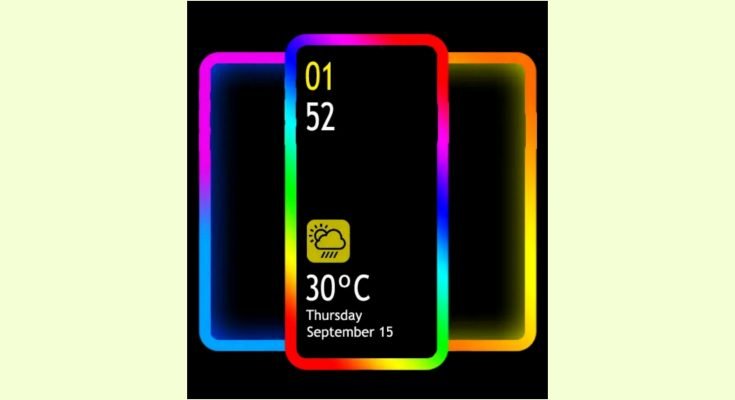
Edge Lighting Apps: Add Glowing Notifications to Any Android Phone
Samsung’s Galaxy phones have had that glowing border effect for notifications for years now — a soft ring of colored light that pulses around the screen edge when a message comes in, even while the phone’s face-down on the table. It looks premium, it’s genuinely useful (you notice a notification without lighting up the whole screen), and if you’re using an Infinix, Tecno, Vivo, or older Samsung that doesn’t have it built in, you might assume you’re stuck without it. You’re not — a handful of apps recreate the same effect on almost any Android phone with an AMOLED or OLED display.
This guide covers what edge lighting actually is, how these apps pull off the effect without official hardware support, which ones are worth installing, and how to set things up so you get the glow without wrecking your battery life or your screen’s lifespan.
What Edge Lighting Actually Is
Edge lighting is a software effect where the border of your screen lights up in a chosen color whenever you get a call, message, or app notification. Samsung built this in natively for their Galaxy line, tying it directly to their notification system so it works reliably without extra setup. On phones without native support, third-party apps recreate the same visual by drawing a glowing animated border over your screen whenever a notification fires, using your phone’s own display rather than any actual physical LED.
That distinction matters. There’s no hidden LED strip inside your phone that suddenly switches on — the “light” is just pixels near the edge of your screen glowing brighter or in a specific color. This is exactly why the effect looks noticeably better on AMOLED and OLED screens than on older LCD panels. AMOLED screens can turn individual pixels on and off independently, so a thin glowing border against a black background looks genuinely striking and barely uses any extra power. On an LCD screen, the backlight illuminates the whole panel uniformly, so you’d end up lighting the entire display just to show a border, which defeats the point.
If you’re not sure what screen type your phone has, check the specs sheet or search your exact model — most mid-range and flagship phones from Samsung, Vivo, Oppo, and recent Infinix and Tecno models use AMOLED, while a chunk of budget phones still use LCD panels.
How These Apps Work Without Native Support
Third-party edge lighting apps use Android’s notification listener permission to detect when a new notification arrives, then draw an overlay animation on top of your screen showing the glowing border effect. Because this overlay technically counts as “drawing on top of other apps,” Android will ask you to grant a specific permission for it during setup — this is normal and expected for this category of app, not a red flag on its own.
Some apps go further and simulate an actual blinking LED dot, similar to the small notification lights that used to be standard on phones years ago before manufacturers phased them out in favor of always-on displays. These apps place a small animated dot near the camera cutout or notch, which is a clever way to bring back a feature a lot of people genuinely missed once phone makers stopped including physical notification LEDs.
Setting Up Edge Lighting on Your Phone
Here’s the general process, since it’s largely similar across most apps in this category.
- Check if your phone already has it built in. Before installing anything, look under Settings, then Display or Notifications, and search for “Edge lighting,” “Edge panel,” or similar wording — Samsung and some other brands include this natively, and if yours does, you can skip the third-party app entirely.
- Install a reputable edge lighting app from the Play Store if your phone doesn’t have native support.
- Grant the display-over-other-apps permission. The app will prompt you for this during setup, usually redirecting you to a settings page to toggle it on manually.
- Grant notification access. This lets the app detect when a notification arrives so it knows when to trigger the glow. Android treats this as a sensitive permission, so you’ll again get redirected to a dedicated settings screen to approve it.
- Customize colors per app. Most apps let you assign different colors to different apps — green for WhatsApp, blue for Messenger, red for missed calls — so you can tell at a glance what kind of notification just came in without picking up your phone.
- Adjust brightness, speed, and thickness of the glow. These settings affect both how the effect looks and how much extra battery it uses, so it’s worth spending a minute tuning them rather than sticking with defaults.
- Test it by sending yourself a notification — WhatsApp yourself a message, or just wait for an incoming call — to confirm everything’s working before relying on it.
Best Edge Lighting and LED Notification Apps
A few names consistently come up as reliable options in this space, each with a slightly different focus.
Always on Edge (AOE) is probably the most fully-featured option, offering customizable colors, animation styles, and shapes, along with extras like music-reactive lighting and a charging animation. It’s a good pick if you want to tweak nearly everything rather than settle for a handful of preset styles.
Edge Lighting Colors takes a lighter, simpler approach — smooth glowing borders with rounded corner animations and a clean interface, aimed at people who want the effect without digging through a dozen settings menus.
LED Blinker Notifications focuses more on recreating the classic blinking LED dot rather than a full edge glow, which suits people who specifically miss the old-school notification light that used to sit near the front camera on older phones.
NotifyBuddy was originally built with OnePlus phones in mind but works broadly on AMOLED displays, adding a virtual LED light with custom icon support while staying relatively light on battery usage.
Before settling on one, it’s worth checking recent Play Store reviews rather than the overall star rating, since these apps get frequent updates and older reviews don’t necessarily reflect current performance.
Apps in this category also tend to accumulate more permission requests over time as they add features, so it’s worth reviewing what a given update actually asks for before approving it blindly.
Getting the Look Right Without Killing Your Battery
The good news is that edge lighting, done properly, barely touches your battery — it’s only a small portion of the screen lighting up for a couple of seconds per notification, not a continuous drain. A few settings choices make a real difference in keeping it that way.
Keep the animation duration short. A glow that lasts two or three seconds does the job just as well as one running for ten, and shorter durations use meaningfully less power over the course of a day if you get a lot of notifications.
Avoid setting brightness to maximum. A softer glow still looks distinctive and uses noticeably less battery than a full-brightness animation, especially if you’re someone who gets frequent notifications throughout the day.
Don’t run more than one lighting app at a time. Installing two or three “just to compare” and forgetting to uninstall the ones you don’t use is a common way people end up with laggy notifications or occasional screen flickering, since multiple apps competing to draw an overlay at the same time can conflict with each other.
Turn off the effect for low-priority apps. Not every notification needs a glow — spam-heavy apps like games or shopping apps that ping constantly are worth excluding from the effect entirely, both to reduce battery use and to stop the glow from losing its meaning through overuse.
Be mindful of screen burn-in if you’re leaving a constant or always-on glow running on an AMOLED screen for extended periods. This is a much bigger concern with static elements left on screen for hours than with brief notification animations,
but it’s worth knowing that any AMOLED panel can develop faint burn-in over years of heavy, repetitive use in the same screen areas — nothing that happens overnight, but worth being aware of if you’re customizing settings.
Permissions Worth Being Cautious About
Edge lighting apps reasonably need two things: permission to draw over other apps, and access to your notifications so they know when to trigger. That’s a normal ask for this category, and there’s no reason to worry about granting either one to a well-reviewed, actively updated app.
What’s worth pausing on is anything beyond that. If an edge lighting app is asking for access to your contacts, SMS content, call logs, or location, there’s no functional reason it needs any of that just to show a glowing border — and notification access in particular is a sensitive permission, since it technically allows an app to read the content of your notifications, not just detect that one arrived.
Stick to apps with a large number of reviews, an actively maintained update history, and a reasonable permission list, and you’ll avoid the handful of low-quality apps in this space that exist mainly to harvest data rather than deliver the feature they’re advertising.
Edge Lighting for Charging Animations
A popular secondary use of these apps is triggering a glow effect specifically when you plug in or unplug your charger, showing your battery percentage with an animated border as it charges.
It’s become a small trend on TikTok and Instagram in Pakistan too — people sharing short clips of their phone’s charging glow set to music, similar to how ringtone and wallpaper customization content circulates.
If this is your main reason for installing one of these apps, look specifically for charging animation support in the feature list before downloading, since not every edge lighting app includes it — some focus purely on notifications and skip the charging effect entirely.
Is It Worth Installing One?
If you like the look and find genuine value in glancing at your phone’s edge to identify a notification type without picking it up, yes — it’s a low-effort way to add a premium-feeling touch to a phone that doesn’t have the feature built in, and done with sensible settings it costs you almost nothing in battery life.
If you’re mainly chasing the aesthetic for social media clips rather than actual daily utility, that’s a fine reason too, just be aware you’ll want to disable it for low-priority apps to avoid notification fatigue draining the novelty within a week.
If your phone already has native edge lighting — check Samsung’s Edge Panel settings specifically, since a lot of Galaxy owners don’t realize it’s already sitting in their settings menu — there’s genuinely no reason to install a third-party app on top of it.
Final Thought
Edge lighting is one of those small customizations that makes a phone feel a bit more personal without costing you anything in performance if you set it up sensibly. Start with whatever’s already built into your phone, and only reach for a third-party app if that option isn’t available.
Pick one well-reviewed app rather than three mediocre ones, tune the brightness and duration down from the defaults, and you’ll get a phone that lights up exactly when you want it to — without eating into your battery or cluttering your notification permissions with apps that don’t need to be there.
