


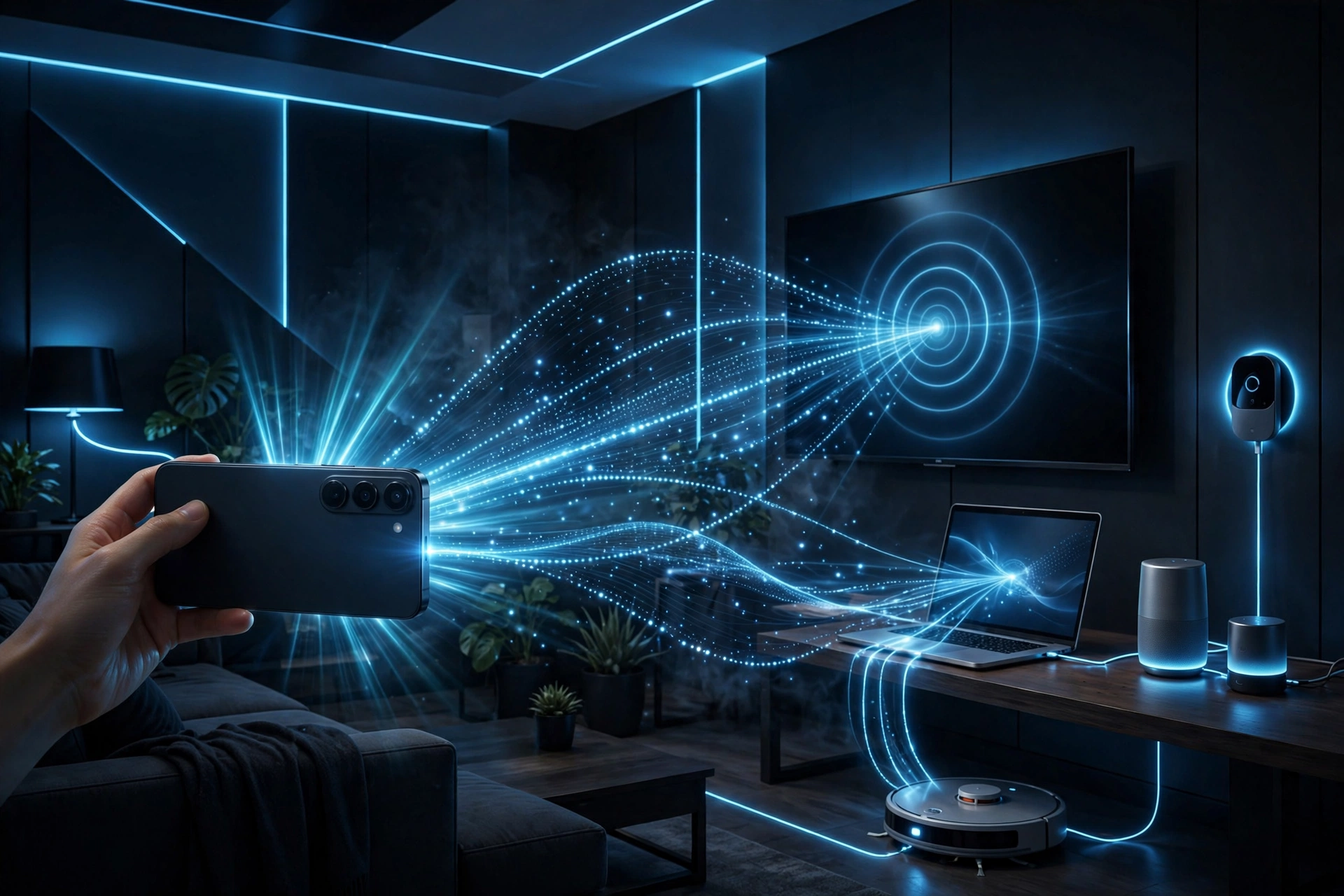
A good phone remote app turns your Android phone into a universal remote for almost everything you own — your TV, your computer, your presentations, even your smart home. Instead of hunting for lost remotes or walking to your PC to skip a song, you control it all from the phone already in your hand. Here are the best phone remote apps in 2026, how to use them safely, and a quick setup walkthrough.
What a Phone Remote App Can Actually Do
Modern remote apps connect over Wi-Fi or Bluetooth and can control smart TVs and streaming boxes, act as a wireless mouse and keyboard for your computer, advance presentation slides from across the room, manage smart lights and plugs, and mirror your screen. For students, office workers, and home entertainment lovers alike, one well-chosen app replaces a drawer full of plastic remotes.
The Best Phone Remote Apps in 2026
1. Unified Remote — Best for Controlling Your Computer
Unified Remote turns your phone into a Wi-Fi remote for Windows, Mac, or Linux. It includes ready-made remotes for the mouse, keyboard, media players like VLC and Spotify, PowerPoint presentations, and file browsing — over 90 in the full version. Setup takes minutes: install the free server program on your computer, connect both devices to the same Wi-Fi, and the app finds your PC automatically.
2. Google TV Remote — Best for Android TV
If you own an Android TV or Chromecast, the official Google TV app gives you a clean touch remote with voice search built in. It is free, reliable, and the obvious choice when the physical remote disappears into the sofa.
3. Microsoft Remote Desktop — Best for Windows Work
Need your office PC from home? Microsoft’s official Remote Desktop app streams your full Windows desktop to your phone securely. It is ideal for grabbing files or running desktop-only software while traveling.
4. Manufacturer Smart-Home Apps — Best for Appliances
Brands like Samsung, LG, and Xiaomi offer official apps that control their TVs, air conditioners, and smart plugs. Because they come from the manufacturer, compatibility and updates are dependable.
Security Checklist for Remote Apps
Remote access is powerful, so lock it down: download remote apps only from the official Play Store, set a password on the server software, keep the app updated, avoid using remote features on public Wi-Fi without a VPN, and disable remote access when you are not using it. Never install a “remote app” sent to you as an APK file by a stranger — that is a classic scam delivery method.
Get Started with Unified Remote in 5 Minutes
- On your computer, download the free Unified Remote Server from the official website and install it.
- Connect your phone and computer to the same Wi-Fi network.
- Install Unified Remote on your phone from the Play Store using the button above.
- Open the app — it should detect your computer automatically. Tap it to connect.
- Try the mouse remote: your phone screen is now a trackpad. Explore the media and keyboard remotes next.
Once set up, you will wonder how you lived without it — skipping episodes, muting ads, and presenting slides, all without leaving your seat.
Do phone remote apps need Wi-Fi?
Most need your phone and the target device on the same Wi-Fi network. Some also support Bluetooth or internet-based connections for remote access.
Is Unified Remote free?
The basic version with essential remotes is free. A paid full version unlocks 90+ remotes and extra features like widgets and voice commands.
Can someone hack my phone through a remote app?
Only if you install shady apps or leave remote access open on public networks. Use official apps, set a server password, and keep everything updated.
Does Unified Remote work on iPhone?
Unified Remote’s server supports Windows, Mac, and Linux computers. Check the official website for current mobile app availability on your platform.
Can I control my TV without the original remote?
Yes. The Google TV app controls Android TVs and Chromecasts, and manufacturer apps cover most smart TV brands.

3 Comments
Pingback: Turn Your Phone Into a Home Theater: Pakistan Guide 2026
Pingback: AirDroid App 2026 Review: File Transfer & Screen Mirror
Pingback: AnyDesk App 2026: Remote Control Guide & Safety Tips